Git is the fastest way to get a service running on Qeda: push code, connect the repo once, and every deploy after that is a couple of clicks. Qeda tries to auto-detect your stack with Cloud Native Buildpacks first — if your repo already has a Dockerfile, it builds that instead.
Connect your GitHub account
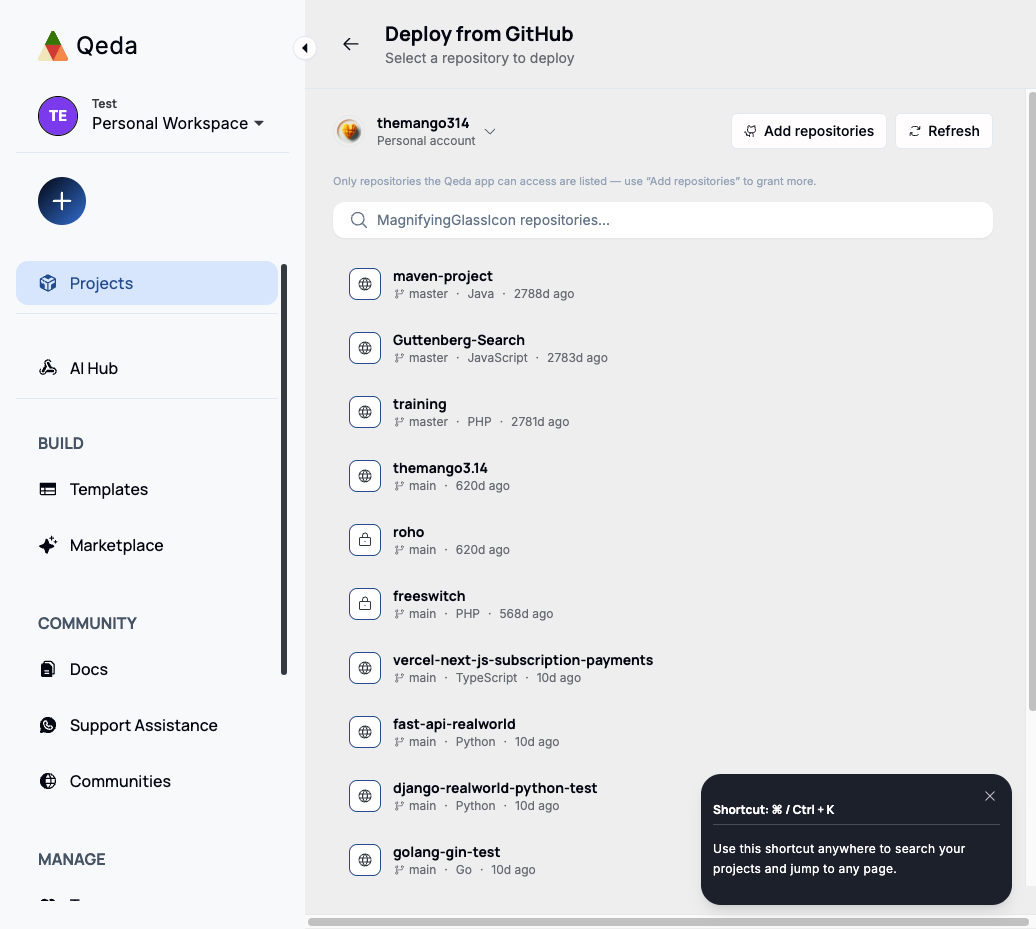
The first time you deploy from GitHub, Qeda asks you to connect your account through the Qeda GitHub App. This happens once per account, not once per project — every project after that reuses the same connection.
Note. If a repository you expect to see isn't listed, it's because the GitHub App doesn't have access to it yet — use "Add repositories" to grant more from GitHub's side, without redoing the whole connection.
Pick a repository
Once connected, you get a searchable list of every repository the GitHub App can see — personal account and any organizations you're a member of, switchable from the dropdown above the list. A lock icon marks private repositories; a globe marks public ones.
Automatic stack detection
Selecting a repository kicks off detection: Qeda looks for package.json, requirements.txt, a Dockerfile, and go.mod to figure out what it is — Node.js, Python, Go, Rust, Docker, or a static site — before it ever builds anything.
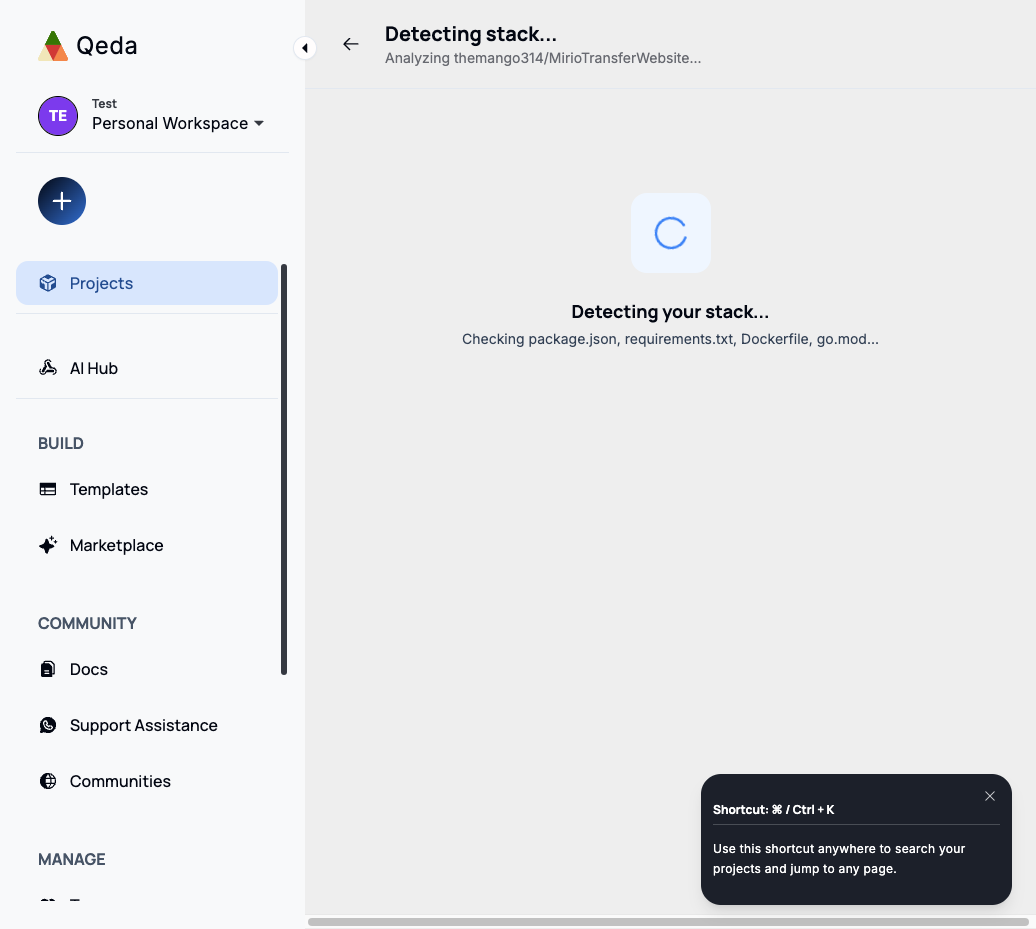
Note. If detection can't confidently tell what your project is, a configuration screen asks for a build command, start command, and port before continuing. Otherwise Qeda deploys immediately — any of those values can still be adjusted afterwards from the service's Settings tab.
Watching the build
Once detection is done, the build starts right away: a live status badge (Building → Deploying) next to a real-time tail of the build log — the same output the platform's builder is producing, not a simulated progress bar.
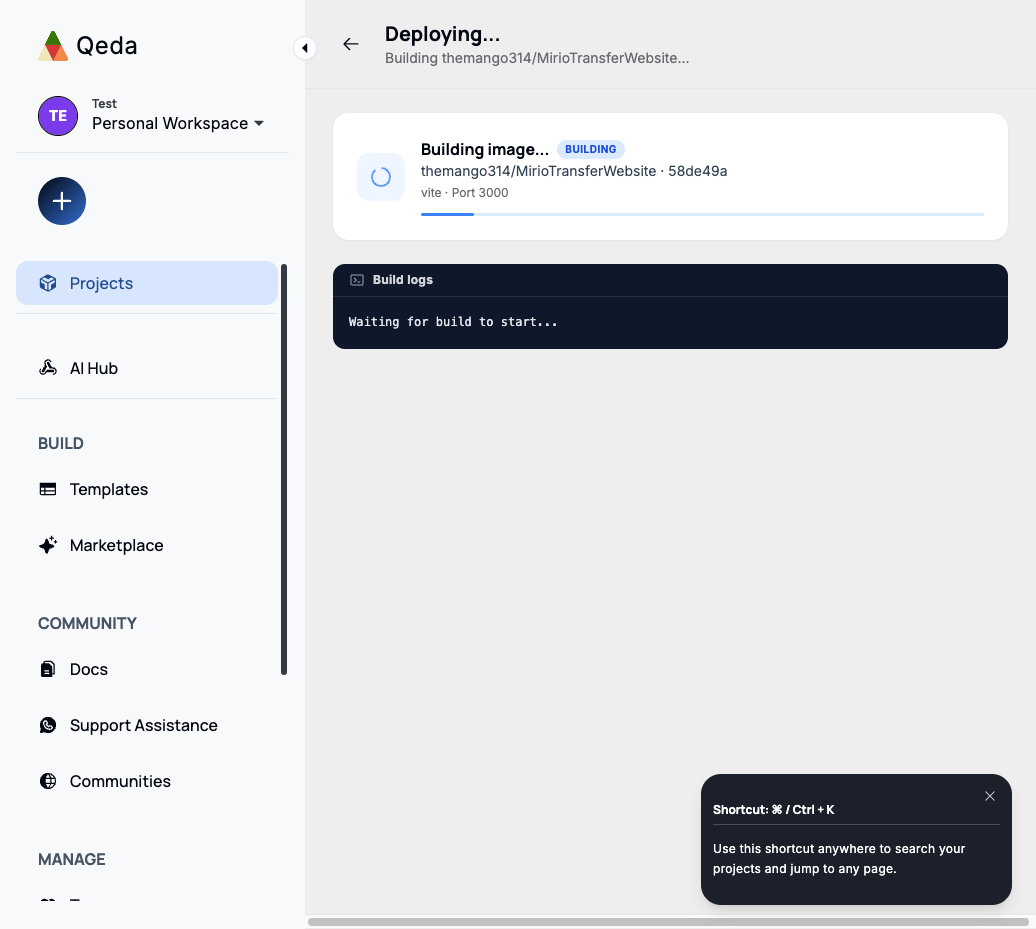
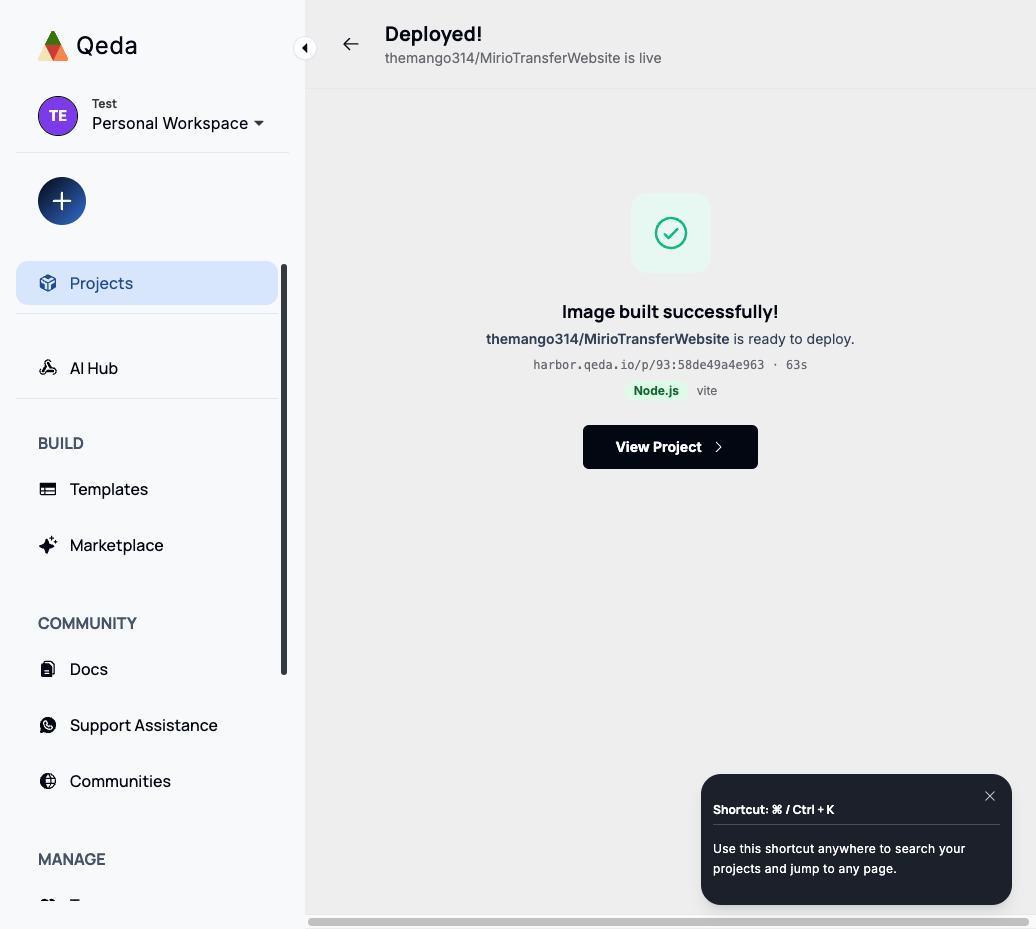
"View Project" takes you to the project's canvas, where the new service now appears as its own card with a live status badge. Every subsequent push to the connected branch can be redeployed the same way from the service's History tab, without going through repo selection again.
Using a Dockerfile instead
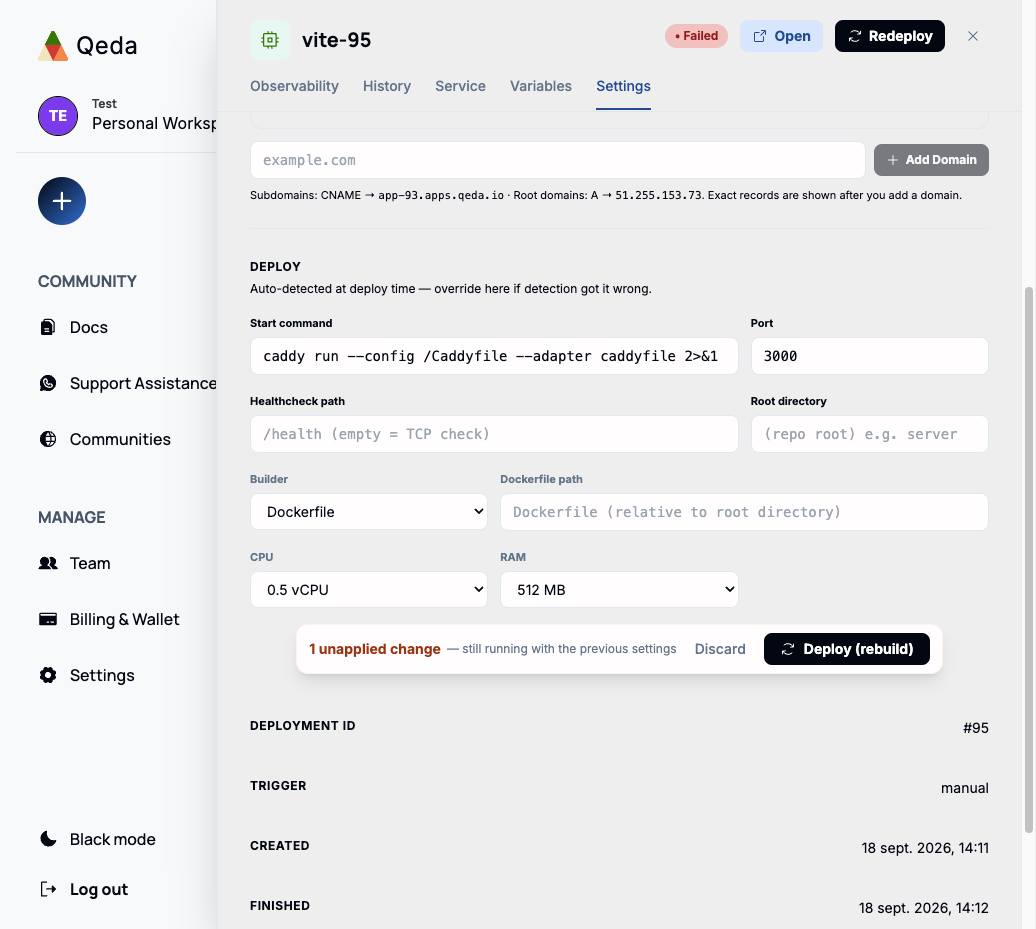
If your repository has a Dockerfile, Qeda builds it directly instead of guessing at a buildpack — no extra step needed on your side. If a repo has both a recognizable stack and a Dockerfile, the service's Settings tab has a Builder dropdown (Auto / Dockerfile / Railpack, ignore Dockerfile) to force one or the other; switching to Dockerfile reveals a path field for a non-standard location.
If a deploy fails
A failed build or a service that never turns healthy shows a dedicated failure panel on the project canvas: which step failed, the last lines of the relevant log, and a diagnosis pulled from the platform's own deploy events — not just a red dot with no explanation. "Fix & redeploy from latest commit" re-runs the build once the underlying issue in the repo is fixed.