
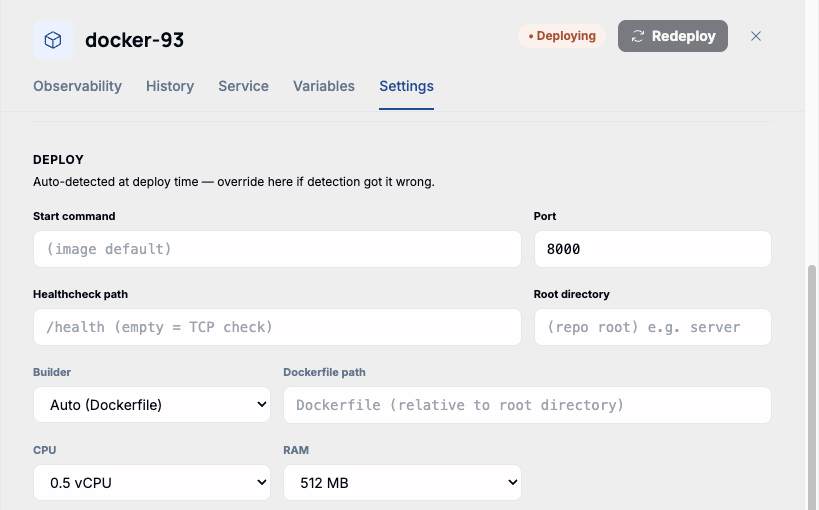
A service's CPU and RAM allocation lives in its Settings tab, right alongside the deploy config (start command, port, healthcheck path) that was auto-detected when it first deployed.
Available tiers
- CPU: 0.25, 0.5, 1, 2, or 4 vCPU.
- RAM: 256 MB, 512 MB, 1 GB, 2 GB, 4 GB, or 8 GB.
Note. 4 vCPU / 8 GB is the ceiling in the standard dashboard, on any plan. Going beyond that — larger instances or a dedicated isolated cluster — is an Enterprise-plan option, provisioned outside this self-serve picker.
These are the same numbers Billing & Wallet's per-hour rates are calculated from (cost per vCPU-hour, per GB-hour) — moving a service to a bigger tier raises its hourly burn immediately, visible on the Billing page the next time it's checked.
Applying a change
Picking a new value from either dropdown doesn't apply it right away — a bar appears above the danger zone confirming there's an unapplied change, with the service explicitly still running on its previous settings until you act on it.
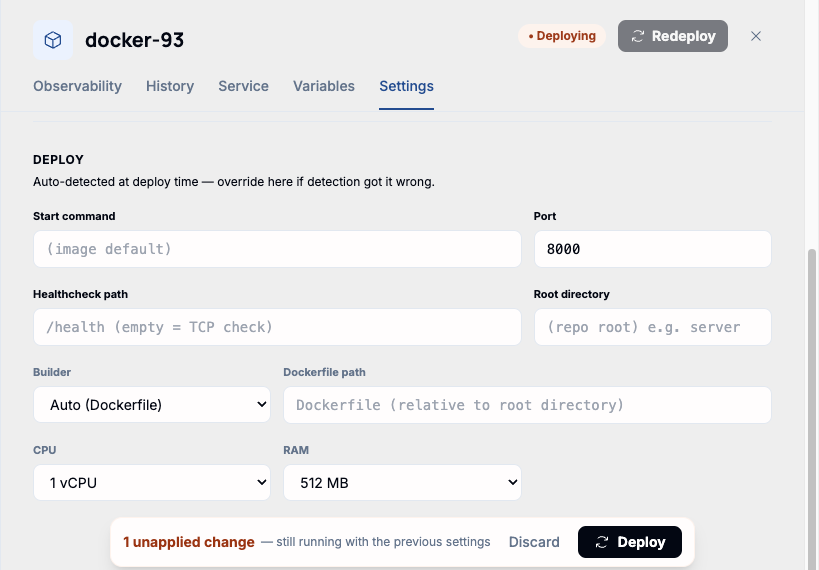
Note. Deploying a CPU/RAM change redeploys the container (same as any other Settings change) — it doesn't rebuild the image, so it's fast, but the service does restart.